
When your computer suddenly stops working, won’t boot, or keeps crashing, one of the first things technicians need is the motherboard model. That’s why so many users search for How to Check what motherboard I have in urgent troubleshooting situations.
Unlike normal upgrades or curiosity checks, this guide focuses on real-world scenarios where Windows may not open, your system is stuck on a black screen, or the PC is partially damaged. In such cases, finding your motherboard requires different methods.
Your motherboard is the core of your system. It controls communication between CPU, RAM, storage, and all connected hardware. Without identifying it correctly, fixing hardware or reinstalling drivers becomes almost impossible.
Why Motherboard Identification Matters in Troubleshooting
When a PC fails, most problems still connect back to the motherboard. Knowing its model helps you:
Diagnose hardware failures
Check compatibility for replacement parts
Update BIOS for system recovery
Identify faulty components
Reinstall correct drivers
Decide whether repair or replacement is needed
In emergency repairs, this information becomes essential.
Method 1: Check Motherboard Without Entering Windows
If your system is not booting properly, you cannot rely on Windows tools. In this case, the simplest version of How to Check what motherboard I have is physical inspection.
Steps:
Turn off your PC completely
Disconnect power cable
Open the CPU case carefully
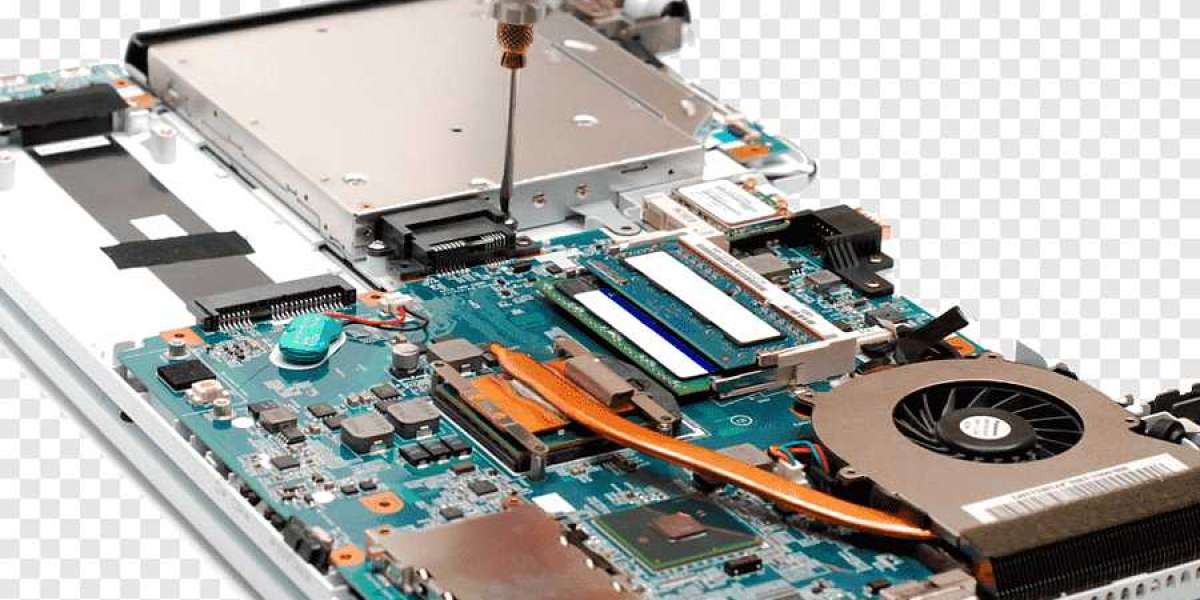
Look directly on the motherboard surface
Where to Look:
Manufacturers usually print the model name in visible areas such as:
Near RAM slots
Around CPU socket
Between PCIe slots
Near chipset heatsink
Example Labels:
ASUS TUF GAMING B550-PLUS
MSI PRO H610M-G
Gigabyte H510M S2H
This is the most reliable method when the system is dead or unstable.
Method 2: Check Motherboard Using BIOS (If PC Still Starts)
If your computer turns on but Windows does not load, BIOS is your best option for How to Check what motherboard I have.
Steps:
Power on your PC
Press DEL, F2, or F10 repeatedly
Enter BIOS/UEFI screen
Go to System Information section
What You Will Find:
Motherboard model
BIOS version
CPU details
RAM information
Even when Windows is broken, BIOS often still works, making this a powerful recovery method.
Method 3: Check Sticker Labels on the Motherboard Box or PSU Area
If you built your PC or bought a prebuilt system, there may be physical labels available.
Where to Check:
Original motherboard box
Warranty card
Side panel sticker (prebuilt PCs)
Service tag label
This method is useful when the system cannot be opened safely or easily.
Method 4: Use Command Prompt (If Windows Still Partially Works)
Sometimes Windows may boot in safe mode or limited functionality. In that case, you can still use CMD.
Steps:
Press Windows + R
Type
cmdRun this command:
wmic baseboard get product,Manufacturer,version,serialnumberOutput Example:
Manufacturer: ASRock
Product: B450 Steel Legend
This method is one of the fastest ways for How to Check what motherboard I have when Windows is unstable but accessible.
Method 5: Use Bootable USB Diagnostic Tools
If Windows is completely broken, you can still find motherboard information using a bootable USB.
Tools You Can Use:
HWiNFO Bootable
Linux Live USB
Hardware diagnostic tools
How It Works:
Create bootable USB
Boot system from USB
Run hardware detection tool
Check motherboard details
This is a professional-level method used by repair technicians.
Method 6: Look for POST Screen Information
When your PC starts, the very first screen before Windows loads is called the POST screen.
What You Might See:
Motherboard brand logo
BIOS version
Model name (sometimes displayed)
You may need to press:
Pause/Break key to freeze screen
Or disable fast boot in BIOS
This method is useful for fast identification during startup issues.
Common Problems That Make Motherboard Checking Necessary
People search How to Check what motherboard I have mostly during these situations:
1. PC Not Booting
System powers on but shows black screen or no display.
2. BIOS Loop Issues
Computer keeps restarting into BIOS.
3. Hardware Upgrade Failure
New CPU or RAM not working.
4. Driver Installation Problems
Wrong drivers installed after reset.
5. System Crashes
Frequent shutdowns or freezing.
Why You Should Never Guess Your Motherboard Model
Guessing the motherboard can lead to serious problems:
Installing incompatible CPU
Buying wrong RAM type
Flashing incorrect BIOS
Damaging system stability
Correct identification is always required before repair or upgrade.
Best Method Based on Situation
Here’s a quick breakdown of How to Check what motherboard I have depending on your condition:
If Windows works:
CMD method
System tools
If Windows doesn’t fully work:
BIOS method
Bootable USB
If PC won’t boot at all:
Physical inspection
If it’s a prebuilt system:
Case sticker or invoice
Safety Tips When Opening Your PC
If you need to inspect hardware physically:
Turn off power completely
Unplug the PSU cable
Avoid static electricity (touch metal surface first)
Do not force components
Use proper lighting
Safety is important to avoid further damage.
Final Thoughts
Learning How to Check what motherboard I have is especially important during troubleshooting situations when your PC is not working normally. Unlike standard system checks, these methods ensure you can still identify your motherboard even if Windows fails or the system does not boot.
From BIOS access and Command Prompt to physical inspection and bootable tools, there are multiple reliable ways to get your motherboard details depending on the severity of the issue.
Once you identify the motherboard correctly, you can confidently proceed with repairs, upgrades, or replacements without risking compatibility errors.